Printers
How do I fix printer offline on Windows 11?
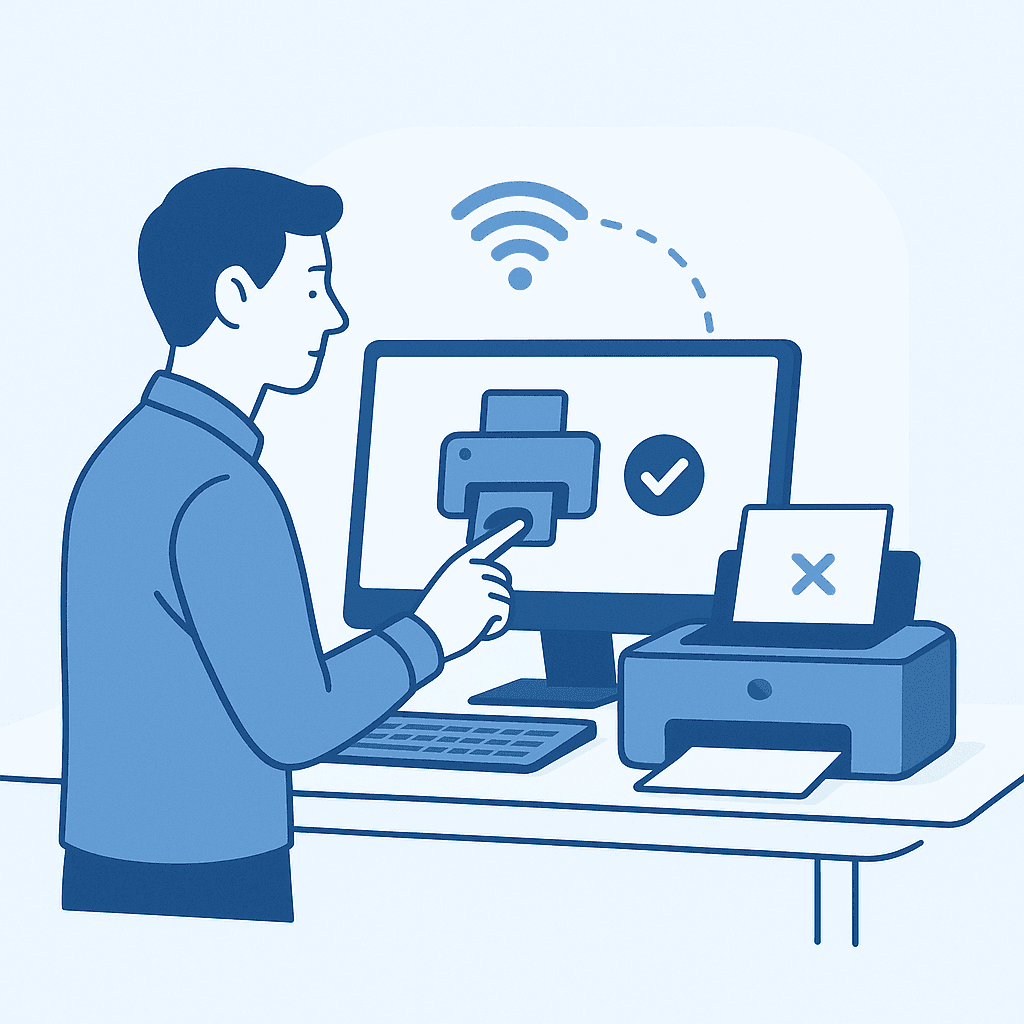
Quick answer
Ensure your printer is connected to the same network as your computer and set as the default printer in Windows 11 settings.
Troubleshoot printer offline issues on Windows 11 by checking network connections, setting the printer as default, updating drivers, and using built-in troubleshooters.
Steps
- 1
Restart Printer and Computer
Power off your printer and computer, wait a few seconds, and then turn them back on to refresh the connection.
- 2
Check Printer Status
In 'Settings' > 'Bluetooth & devices' > 'Printers & scanners', ensure your printer is not set to 'Offline'.
- 3
Set Printer as Default
Select your printer in 'Printers & scanners' and click 'Set as default' to ensure it receives print jobs.
- 4
Update Printer Driver
Download and install the latest driver from the manufacturer's website to ensure compatibility with Windows 11.
- 5
Run Printer Troubleshooter
Navigate to 'Settings' > 'System' > 'Troubleshoot' > 'Other troubleshooters' and run the 'Printer' troubleshooter.
Check Network Connection
Verify that your printer is connected to the same Wi-Fi network as your computer. For wired connections, ensure the USB cable is securely connected.
Set Default Printer
Navigate to 'Settings' > 'Bluetooth & devices' > 'Printers & scanners'. Select your printer and click 'Set as default'.
Update Drivers
Visit the printer manufacturer's website to download and install the latest drivers compatible with Windows 11.
Use the Printer Troubleshooter
Go to 'Settings' > 'System' > 'Troubleshoot' > 'Other troubleshooters' and run the 'Printer' troubleshooter to identify and fix issues.
Watch out for
- Printer settings and options may vary depending on the manufacturer and model.
- Ensure your Windows 11 is updated to the latest version for optimal compatibility.
- Some printers may require specific software from the manufacturer for full functionality.
FAQ
Why does my printer keep going offline?
This can be due to network issues, outdated drivers, or incorrect settings. Ensure all connections are secure and drivers are updated.
How do I reconnect my printer to Wi-Fi?
Refer to your printer's manual for specific instructions, usually involving accessing the printer's control panel and selecting the Wi-Fi setup option.
Can a VPN affect my printer connection?
Yes, a VPN can interfere with network connections. Disconnect from the VPN and try printing again.