Smartphones
How do I stop iPhone from backing up to iCloud automatically?
Quick answer
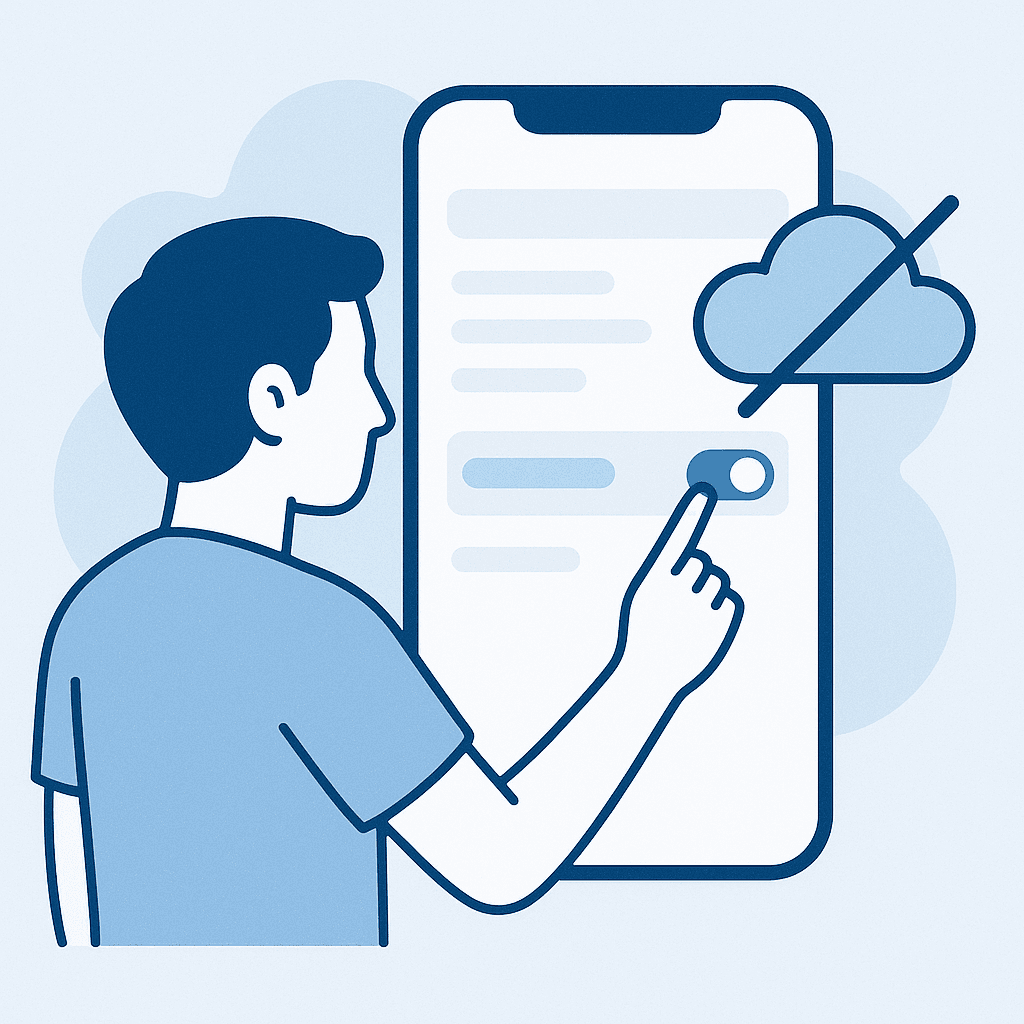
To stop your iPhone from backing up to iCloud automatically, go to Settings > [your name] > iCloud > iCloud Backup and toggle off 'iCloud Backup'. This will prevent automatic backups but still allow you to perform manual backups.
Learn how to disable automatic iCloud backups on your iPhone to manage storage and maintain privacy.
Steps
- 1
Open Settings
Tap the 'Settings' app on your iPhone's home screen.
- 2
Access iCloud Settings
Tap your name at the top of the Settings menu to access your Apple ID settings, then select 'iCloud'.
- 3
Navigate to iCloud Backup
Scroll down and tap on 'iCloud Backup'.
- 4
Disable iCloud Backup
Toggle off the 'iCloud Backup' switch to stop automatic backups.
Understanding iCloud Backup
iCloud Backup saves your iPhone's data, such as app data and settings, to iCloud when connected to Wi-Fi and power. Disabling it can help manage storage or enhance privacy.
Disabling Automatic Backup
Turn off automatic iCloud backups through your iPhone settings to prevent data from being backed up without your consent.
Managing iCloud Storage
After disabling automatic backups, manage your iCloud storage by deleting old backups or unnecessary files to optimize space.
Watch out for
- Disabling iCloud Backup means your data won't be automatically saved to iCloud.
- Manual backups will still be possible if you choose to perform them.
- iCloud settings may vary slightly depending on your iOS version.
FAQ
Will disabling iCloud Backup delete my existing backups?
No, disabling iCloud Backup will not delete existing backups. It only stops future automatic backups.
Can I still manually back up my iPhone to iCloud?
Yes, you can manually back up your iPhone by tapping 'Back Up Now' in the iCloud Backup settings.
What happens if I run out of iCloud storage?
If you run out of iCloud storage, your device will no longer back up to iCloud until you free up space or purchase additional storage.